Bring your own
9 Design File Mistakes That Slow Down Merch Orders
Most delays in a merch order trace back to one of nine avoidable file mistakes. Catch them before you upload and skip the back-and-forth.
By Influxer · Published 2026-08-16 · Updated 2026-08-16 · 4 min read
When a merch order needs a second look during review, the cause is almost always something in the file itself rather than anything about the order. The good news is the same handful of mistakes show up over and over, which means they are easy to check for ahead of time.
Run through these nine before you upload. Each one takes under a minute to check and can save you a round trip through the review step.
1. Uploading a JPG instead of a transparent PNG
JPG cannot store transparency, so it always carries a solid background rectangle with it. On anything other than a matching white garment, that rectangle becomes visible around the design. Export a PNG with transparency enabled instead, or a vector file for flat logos.
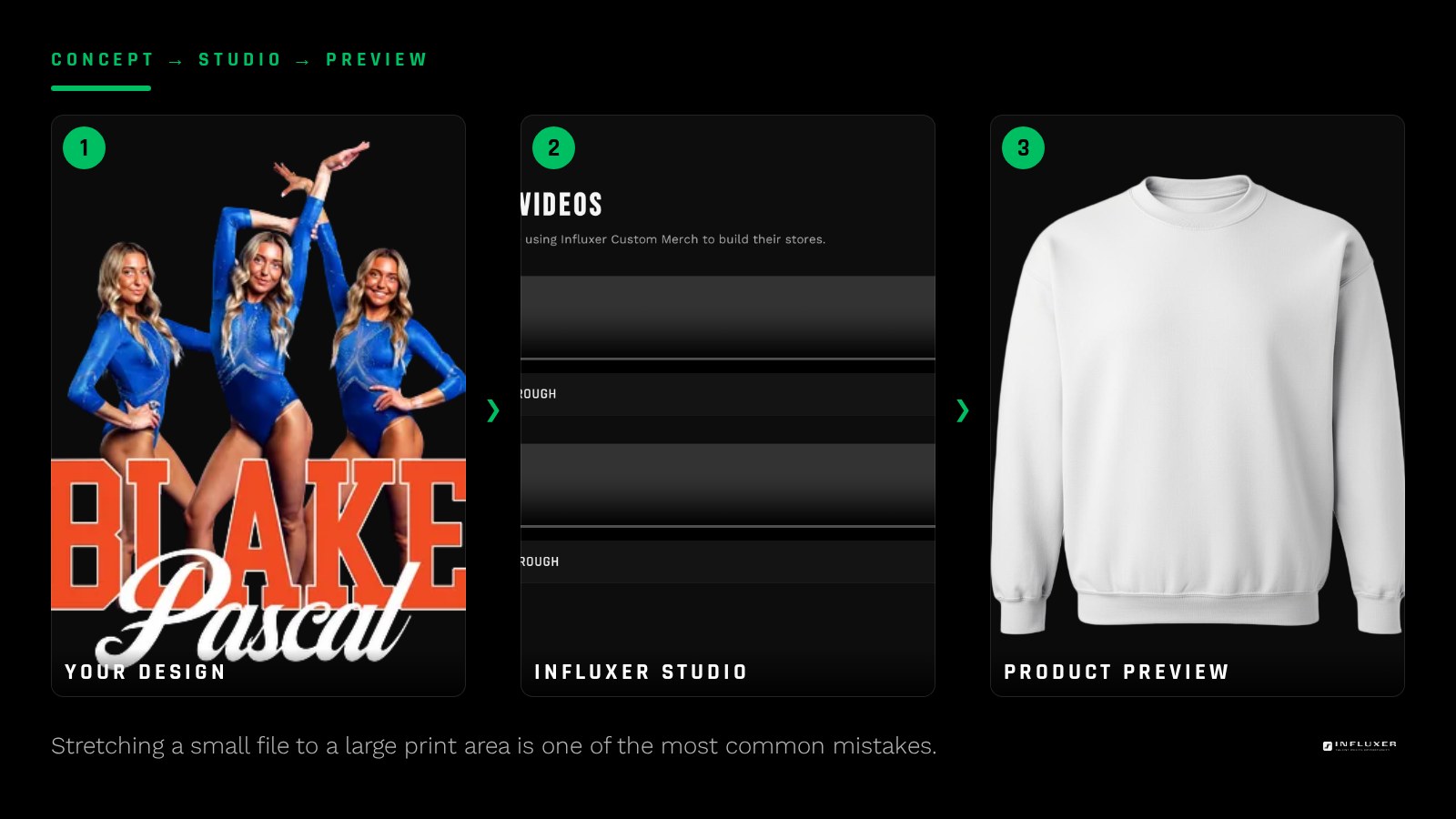
2. Low resolution stretched to fit a large print area
A file built for a small use, like a social media avatar, often has far fewer pixels than a full front print needs. Stretching it to fill a 12-inch print area produces visible softness. Check the pixel dimensions against the print size before uploading, and re-export from a larger or vector source if it falls short.
3. A hidden background left behind by an incomplete cutout
Automatic background removers and manual cutouts sometimes leave a faint fringe or an entirely missed box around part of the artwork. This is invisible on a white screen and obvious on a colored garment. Test any cleaned-up file over a solid black background before uploading.
4. Low contrast against the intended garment color
A design that reads clearly on a white screen can disappear on a dark garment, or vice versa. Preview your artwork against the actual colors in your drop, not just the default canvas color, and prepare an alternate version if a pairing does not hold up.
5. Excess empty space around the artwork
Placement tools work from the edges of the uploaded image file, not from where the visible design sits inside it. A large margin of empty transparent space around a logo can make it land off-center or too small once placed, even though it looked fine in your editor. Crop tight to the visible artwork before exporting.
6. Third-party marks without clear rights to use them
School logos, league marks, and brand graphics belong to their owners, and whether they can be used depends on the applicable marks and the program the merch runs under. This is one of the more common reasons a design needs a closer look during review. Designs built from your own name, number, nickname, or original artwork avoid the question entirely.
7. Wrong file type for the artwork content
A photo saved as a vector trace loses detail and looks posterized. A detailed illustration with shading exported as a flat vector loses its gradients entirely. Match the file type to the content: PNG for photos and shaded art, vector formats like SVG or PDF for clean type and flat shapes.
- Photos and shaded illustrations: PNG.
- Wordmarks and flat icon logos: SVG, PDF, or EPS.
- Never JPG when transparency is needed.
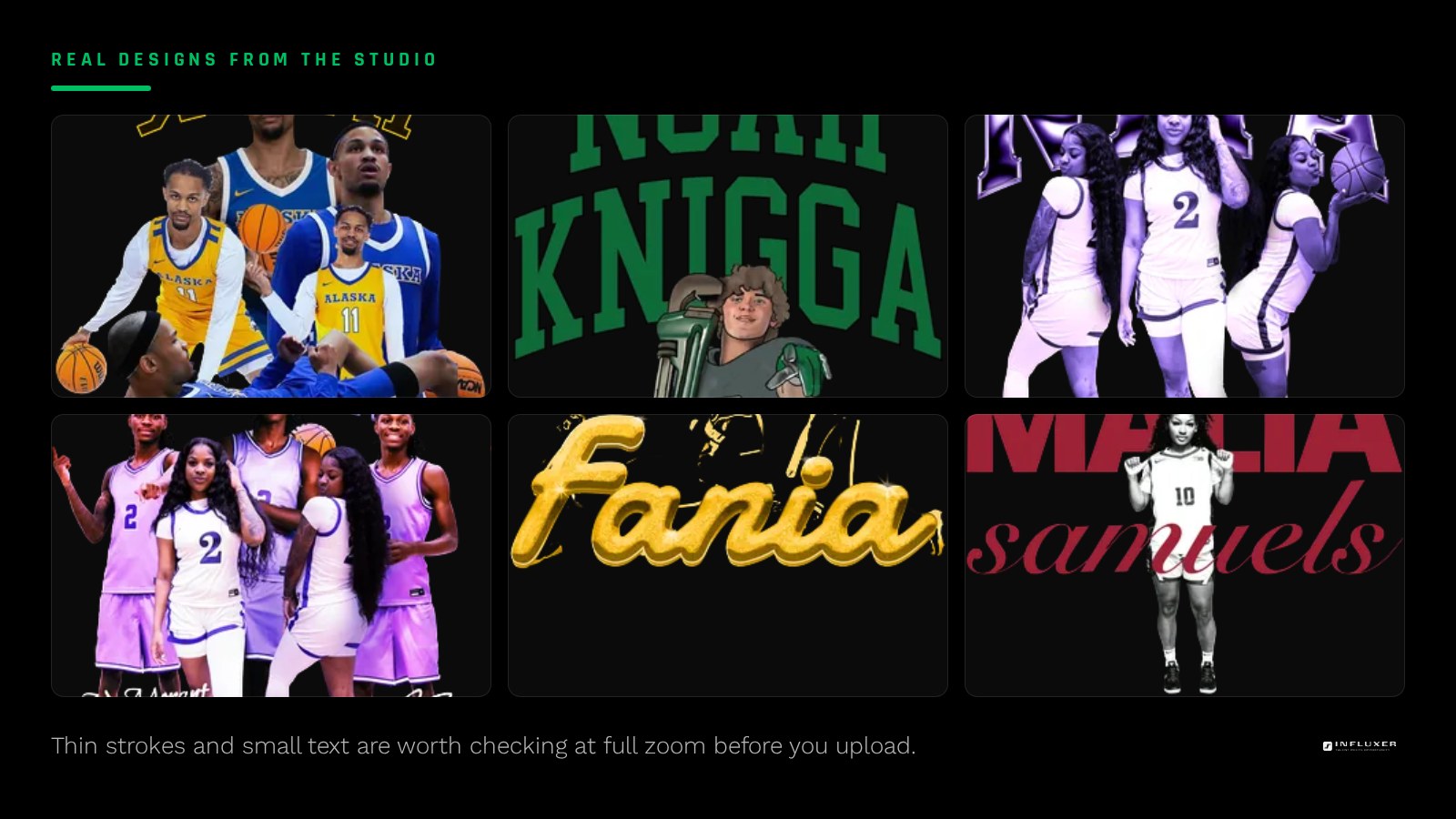
8. Thin strokes and fine text that disappear on fabric
Strokes and small text that look fine on a screen can break down once printed, especially on textured garments. Zoom to 100 percent and check the thinnest parts of the design before uploading, and thicken anything that looks fragile at that zoom level.
9. Uploading the wrong version of a design
When a design goes through several rounds of edits, it is easy to grab an older export by mistake, especially if file names are similar. Rename files clearly as you finalize them, and open the file one more time right before uploading to confirm it matches what you intend to send.
Nine checks before you upload
- Exported as PNG with transparency, not JPG.
- Resolution matches the intended print size.
- No hidden background box or fringe remains after cleanup.
- Contrast checked against the actual garment colors.
- Canvas cropped tight with no excess empty space.
- Confirmed rights to every element, including fonts and third-party marks.
- File type matches the artwork content, raster or vector.
- Thin strokes and small text checked at 100 percent zoom.
- Confirmed you are uploading the final, correct version.
Frequently asked questions
Why did my design need a second look during review?
The most common reasons are a hidden background box, low resolution stretched too large, low contrast against the garment color, or a third-party mark that needs clarification. Checking the nine items in this guide catches nearly all of them ahead of time.
Does the file type actually matter that much?
Yes. JPG cannot hold transparency, so it always brings a background box with it, and using a vector format for a photo, or a raster format for a scalable logo, produces worse results than matching the format to the content.
How do I know if my design has enough resolution?
Compare the pixel width of your file to the print width in inches multiplied by 300. If the number falls well short, the artwork will look soft once enlarged to that print size.
What if I am not sure whether I can use a certain logo or graphic?
Note it during the review step rather than guessing. Whether a specific mark can be used depends on the applicable rights and the program the merch runs under, and it is easier to clarify early than after production.
Upload your design — Catch these nine mistakes before you upload and keep your order moving.
Not sure which path fits? — Compare uploading your own artwork with starting from a ready-made design.