Bring your own
Transparent Background PNGs for Shirts: Why They Matter
A design without a transparent background prints as a solid rectangle on the garment. Here is why that happens and how to fix it before you upload.
By Influxer · Published 2026-08-16 · Updated 2026-08-16 · 5 min read
The single most common surprise in a first merch order is a pale rectangle showing up around a logo that looked fine on screen. It happens because the file behind that logo was never actually transparent, it just looked transparent against the white background of whatever app displayed it.
A transparent PNG stores an extra channel of information, called alpha, that tells the printer which pixels are part of the design and which pixels are nothing at all. Get that channel wrong and every garment color you choose fights against a hidden box behind your artwork.
This guide explains what transparency actually is, how to export it correctly from common tools, and how to verify it before you upload to the Influxer studio.
What "transparent background" actually means
Every image file stores color for each pixel. A PNG can additionally store an alpha value per pixel, from fully opaque to fully see-through. When alpha is set correctly, the areas outside your logo are marked as empty rather than white, so the garment color shows through those pixels instead of a rectangle.
A JPG cannot store alpha at all, which is why a JPG export of any logo always brings a solid background with it, usually white. That single limitation is the reason JPG is a poor choice for anything meant to sit on a colored garment.
Why a white box shows up even when you meant to remove it
Most of the time the artist did turn on transparency, but something upstream undid it. A logo pasted in from another document can carry its own opaque background layer hidden beneath the visible artwork. An automatic background remover can leave a faint gray fringe of semi-transparent pixels around the edges instead of a clean cutout.
Some export presets flatten transparency by default, especially ones meant for web thumbnails or email signatures, because those contexts assume a white canvas. If you exported from a template or a tool you do not fully control, always re-check the result rather than trusting the setting name.
How to export a real transparent PNG
In Photoshop, delete or hide the background layer entirely before using Export As PNG, and confirm no white fill layer sits beneath your artwork. In Illustrator, export as PNG with the background option set to transparent, not white. In Canva, use the download menu and choose PNG with the transparent background toggle switched on, which is only available on designs without a background element added.
Whatever tool you use, the artwork itself must not include a rectangle, circle, or fill shape behind the logo, because a transparent export cannot remove an intentional shape that is part of the design.
- Photoshop: delete the background layer, then Export As PNG.
- Illustrator: PNG export with transparent background checked.
- Canva: download as PNG, transparent background toggle on.
- Any tool: check for a hidden fill shape behind the logo first.
The black-background test
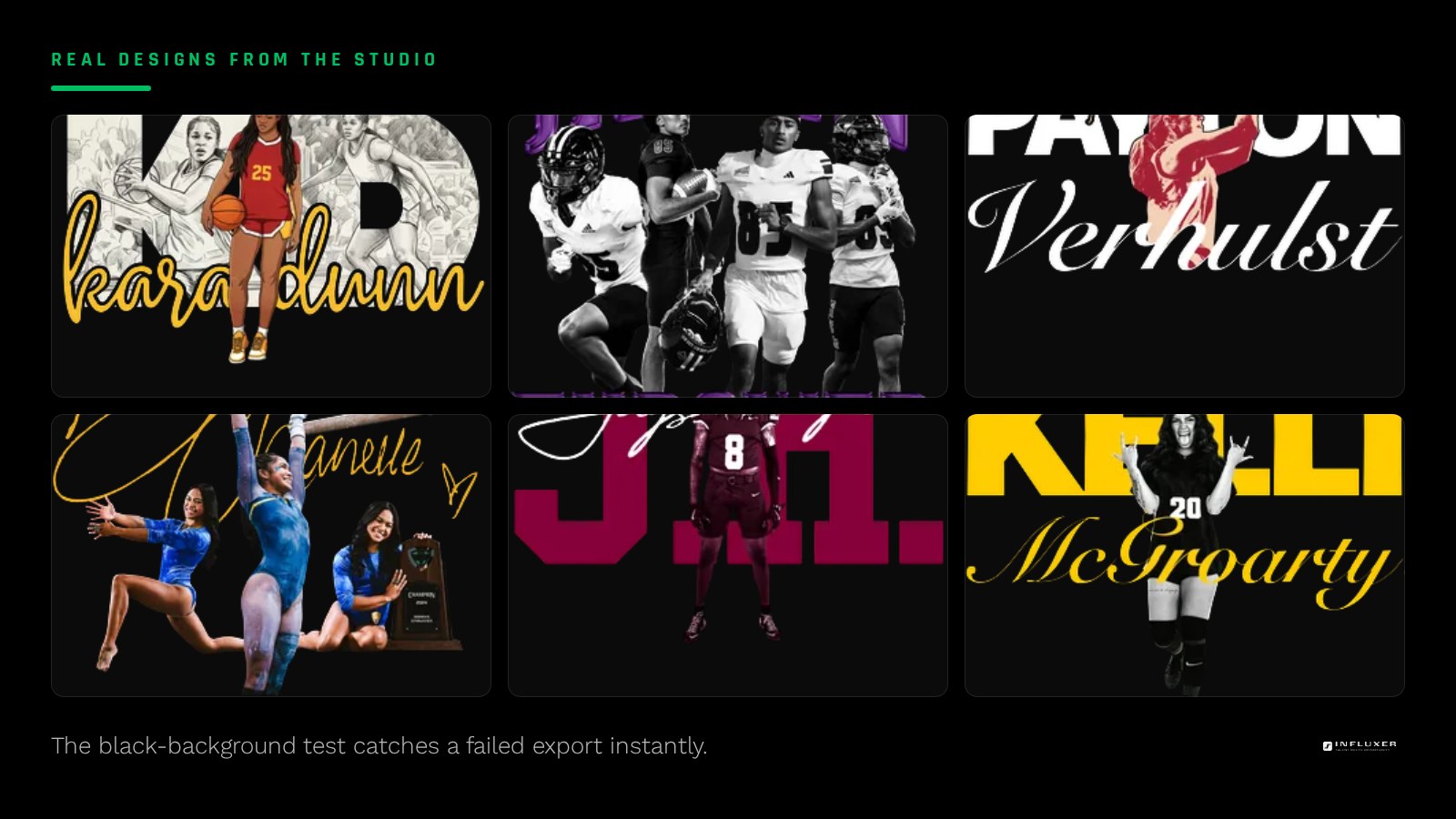
The fastest way to confirm transparency worked is to place the exported file over a solid black square in any image viewer or document. If the background is truly transparent, you will see the black showing through everywhere outside the artwork. If a lighter rectangle, halo, or fringe appears, the export still carries an opaque layer somewhere.
This test catches problems a white-background preview hides completely, since a nearly-white background against a white canvas is invisible until it lands on a colored garment.
Why this matters more on some garment colors than others
On a white tee, a hidden white box is invisible and the mistake never surfaces. On Pepper, Blue Jean, Yam, or any darker Comfort Colors 1717 shade, that same hidden box appears as an obvious rectangle around your artwork, which is usually the first time someone notices the file was never actually transparent.
If your merch drop includes more than one garment color, test transparency against your darkest planned color, not just the lightest one, since that is where any leftover background becomes visible.
Confirming it in the studio
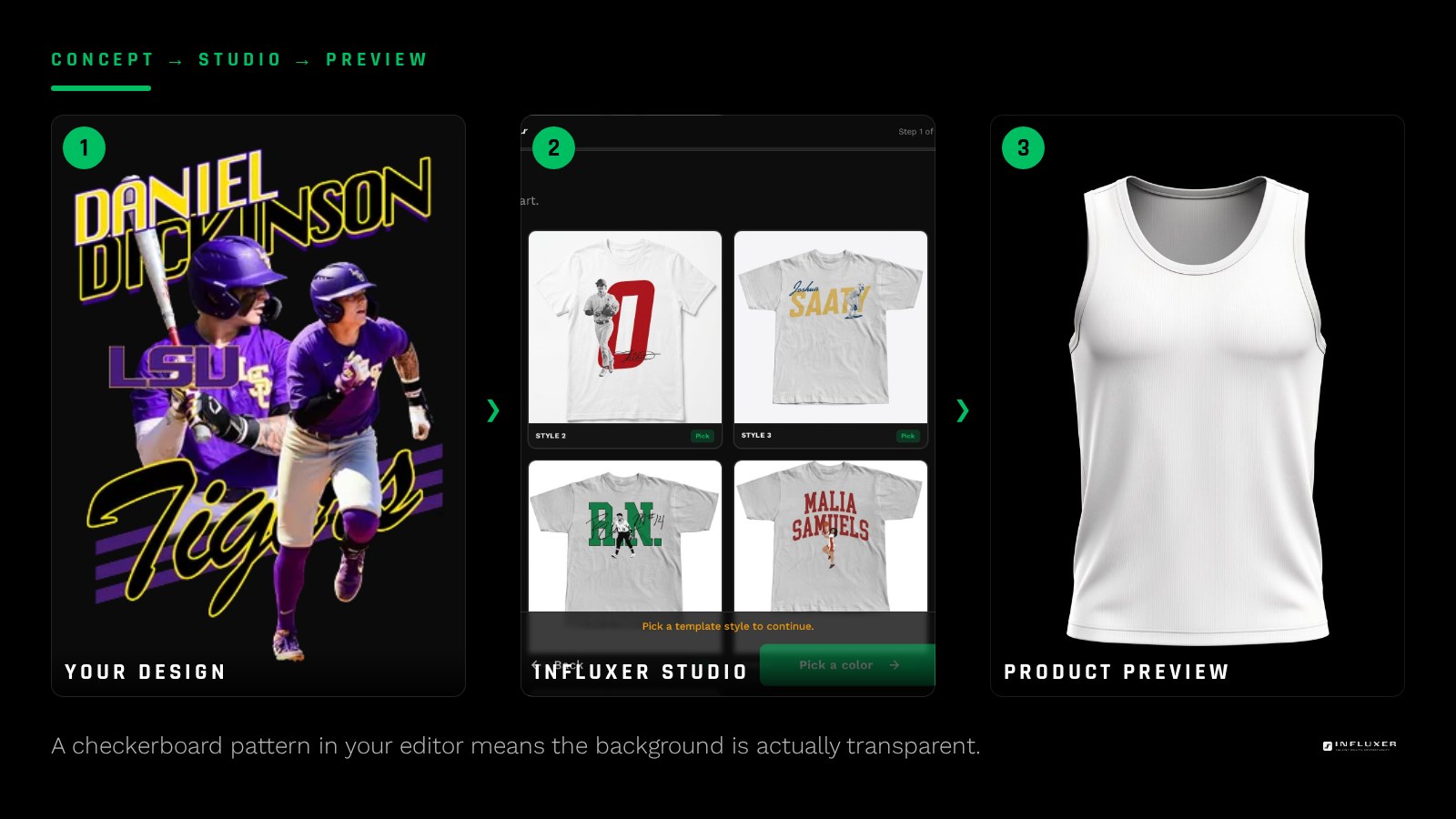
Once you upload the file, the Influxer studio previews it directly on the garment mockup you choose, including darker colors. That preview is your last checkpoint: if a box or halo appears around the design on the mockup, go back and re-export rather than choosing a lighter garment color to hide the problem.
Choose simple upload for one design on one product or collection if the same artwork needs to sit across several garments and colors, since the transparency check matters the same way either path.
Transparent PNG checklist
- Confirm no fill shape sits intentionally behind the artwork.
- Remove or hide the background layer before exporting.
- Choose a PNG export with transparency explicitly enabled.
- Avoid JPG entirely for logos and designs.
- Place the export over solid black to check for a hidden box.
- Test transparency against your darkest planned garment color.
- Re-check any file that passed through an automatic background remover for fringe pixels.
Frequently asked questions
Why does my logo have a white box even though I exported a PNG?
The PNG format supports transparency, but that does not mean every PNG export uses it. A hidden background layer, a flattening preset, or an imported element with its own opaque fill can all leave a solid box behind, even in a valid PNG file.
How do I check if my PNG is really transparent?
Place the file over a solid black background in any image viewer. If the black shows through everywhere outside your artwork, the transparency worked. Any visible rectangle or pale halo means it did not.
Does Canva support transparent PNG export?
Yes, on designs that do not already include a background element, the download menu offers a transparent background toggle for PNG exports. If the toggle is unavailable, the design likely has a background layer that needs to be removed first.
Does transparency matter if I am only using a white shirt?
It matters less on white, since a hidden white box is invisible there, but if your drop includes any darker garment color, that same file will show a visible rectangle, so it is worth fixing before you upload either way.
Upload your transparent PNG — See your artwork on a real garment mockup, including darker colors.
Not sure which path fits? — Compare uploading your own artwork with starting from a ready-made design.