Help me choose
Designing Merch on Your Phone vs a Laptop
Both devices get you through the same five steps. Here is where a phone works fine and where a laptop actually helps.
By Influxer · Published 2026-08-16 · Updated 2026-08-16 · 4 min read
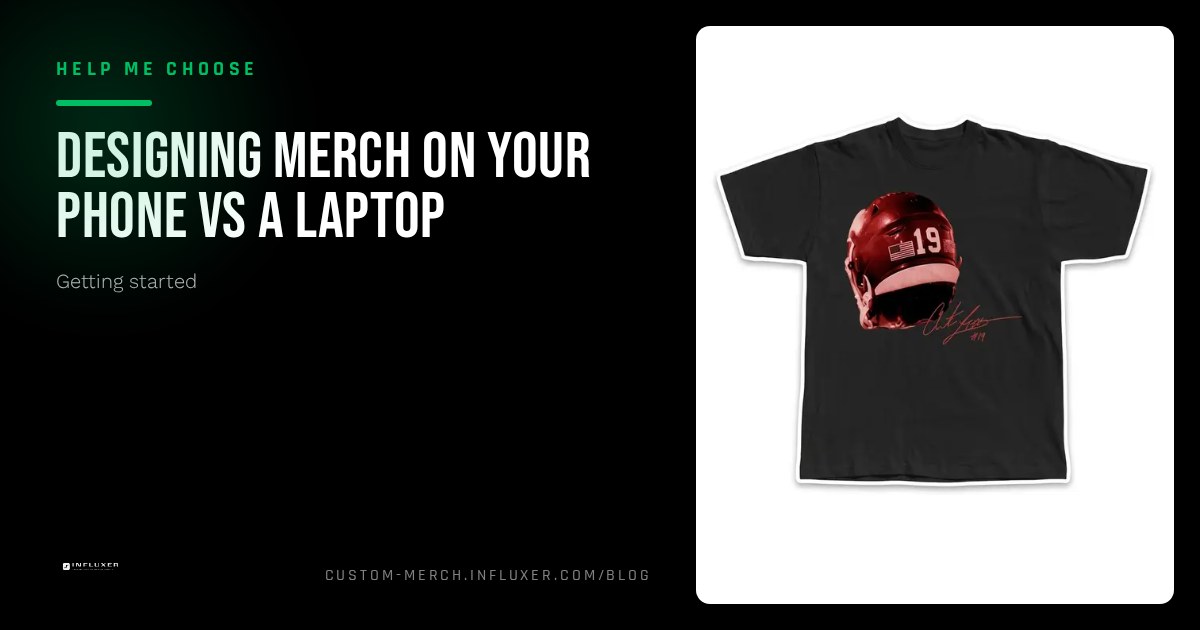
Most athletes reach for their phone first, since that is where photos live and where a spare ten minutes usually happens. The Influxer studio works on a phone, but "works" and "is the easiest way to do every step" are not the same claim. This article breaks the five-step flow apart, step by step, so you know exactly where a phone is fine and where a laptop actually saves you effort.
None of this is about one device being better in general. It is about matching the device to the task in front of you at each stage of Design, Photo, Signature, Info, and Review.
The Design step: fine on either device
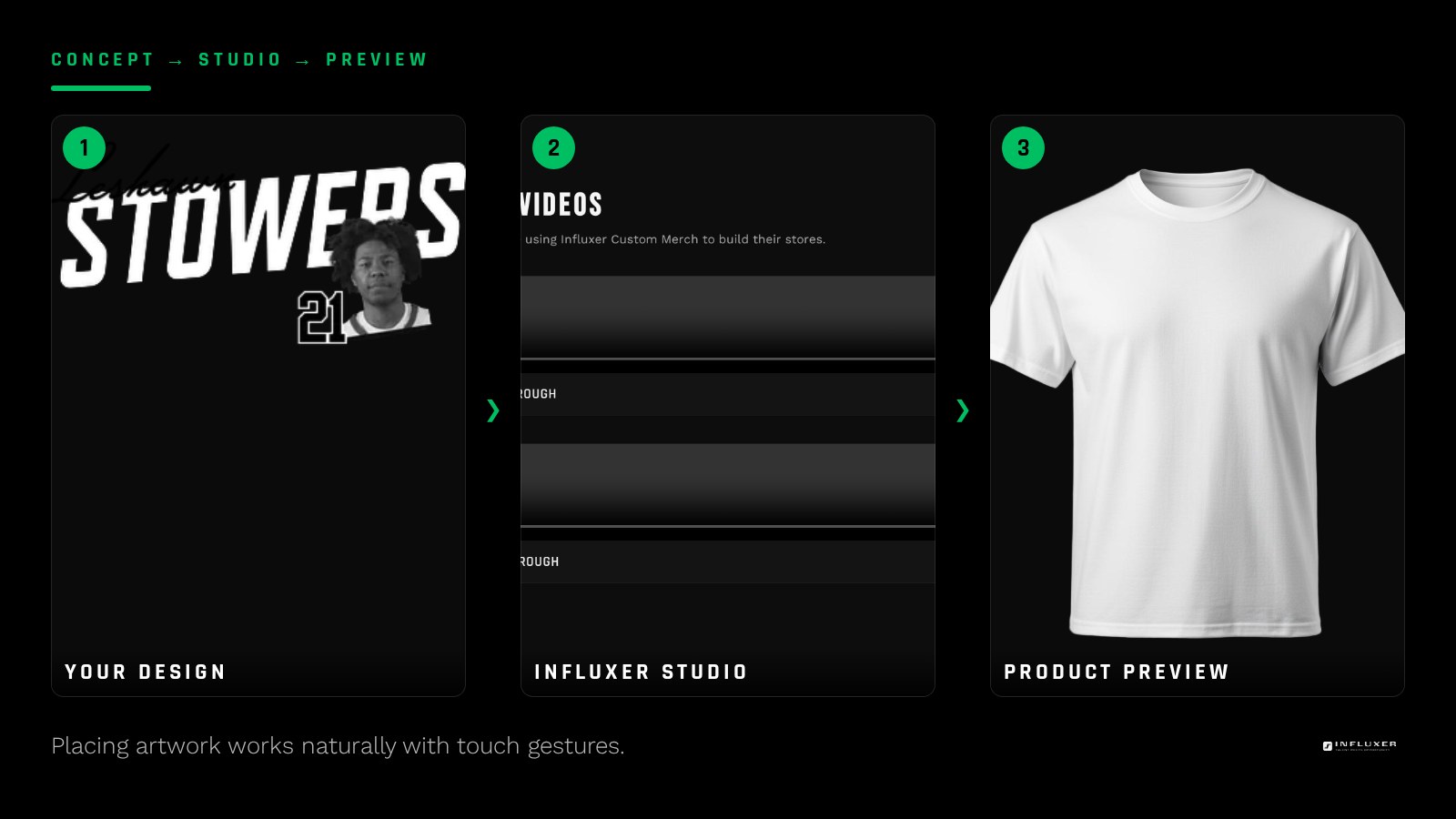
Placing and scaling artwork on a garment mockup works on a touchscreen without much friction, since dragging and pinching to resize is a natural phone gesture. If you are using the collection variant to check a design across several garments and colors, a larger screen makes comparing them side by side easier, but it is not a requirement.
If you are using the AI logo helper to generate artwork with a transparent background, either device handles the generation step the same way, since it happens on the same screen regardless of size. Uploading a file works identically too, since PNG, JPG, PDF, and SVG files all come from the same photo library or file browser on either device.
The Photo step: phone has a real advantage
This is the one step where a phone is genuinely the better tool, not just an equal option. Your phone is both the camera and the upload device, so there is no transfer step between taking a photo and adding it to your order.
On a laptop, you would need to get a photo onto that machine first, whether by cable, cloud upload, or email to yourself, which adds a step that a phone skips entirely. If you already have a good photo saved somewhere, a laptop works just as well; the phone advantage only matters when you are shooting the photo fresh for this order.
The Signature step: depends on your input method
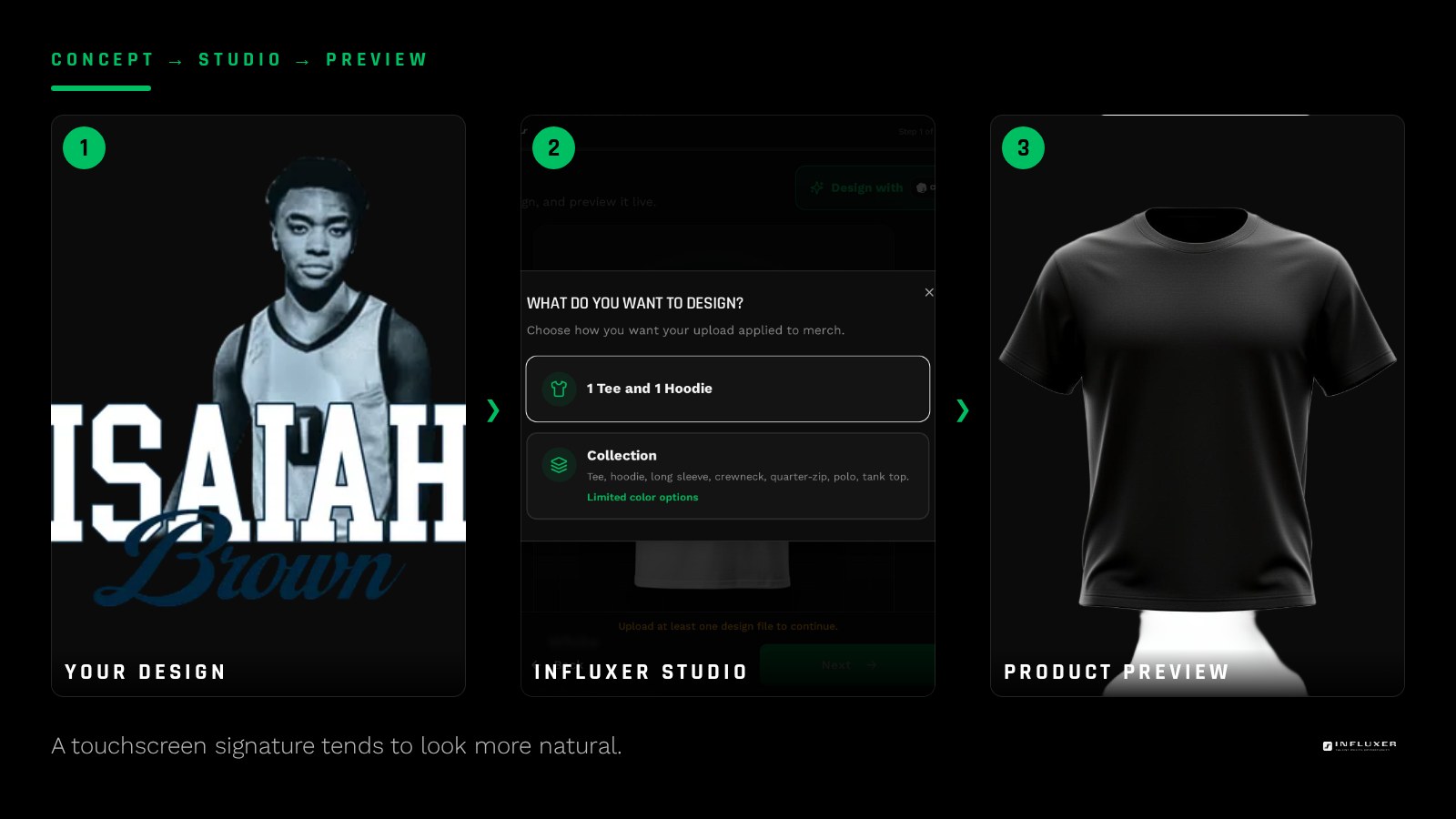
Since Signature is optional, this step only matters if you plan to include one. A touchscreen tends to produce a more natural-looking signature than a laptop trackpad, since you are drawing with a finger rather than a mouse.
If your laptop has a touchscreen or you have a stylus, that changes the comparison, but for a standard trackpad setup, phone has the edge here too. If neither device gives you a clean result, it is fine to skip Signature entirely and move on to Info.
The Info step: typing speed matters more than screen size
Entering your name, contact details, school, and sport is mostly a typing task. A physical keyboard is faster for most people, so a laptop can save a minute or two here, especially if autofill is not set up on your phone.
That said, this is not a step where mistakes are costly, since drafts auto-save and you can resume later to fix a typo if you notice one after moving on.
The Review step: screen size helps you catch details
Review shows your whole order assembled together: design, photo, optional signature, and your Info details. A larger screen makes it easier to actually look at everything at once rather than scrolling through pieces one at a time.
This is worth considering if you want to be extra careful before confirming the collaborator agreement popup, since a laptop screen gives you a fuller view of the summary in one glance.
A practical mixed approach
You do not have to pick one device for the whole order. Because your draft auto-saves and you get a resume link, you can start on your phone, take your Photo step photo right there, and then switch to a laptop later to finish Info and give Review a careful look before submitting.
This mixed approach uses each device for what it is actually good at instead of forcing one device through the entire flow. If you are working with a parent or coach on the same order, sending them the resume link also lets them fill in a step from their own device without you having to hand over your phone.
Picking a device for each step
- Use your phone for the Photo step to skip a transfer step entirely.
- Use a touchscreen or stylus for a more natural Signature, if you include one.
- Consider a laptop keyboard for faster typing at Info.
- Use a larger screen at Review to see the whole summary at once.
- Use the collection variant on a larger screen if comparing many colorways.
- Save your resume link if you plan to switch devices mid-order.
Frequently asked questions
Can I complete an entire merch order on just my phone?
Yes. All five steps work on a phone. A laptop simply makes typing and reviewing the full summary slightly easier for some people.
Is there any step that requires a laptop?
No. Every step, including Design, Photo, Signature, Info, and Review, works on a phone from start to finish.
Can I switch devices partway through an order?
Yes. Your draft auto-saves and gives you a resume link, so you can start on one device and finish on another without losing progress.
Does device choice affect how my design actually prints?
No. The garment preview and print placement are the same regardless of which device you used to build the design.
What file types can I upload from either device?
PNG, JPG, PDF, and SVG all work whether you are pulling the file from a phone photo library or a laptop file browser, so file format is never a reason to pick one device over the other.
Start your merch — Answer a few questions and get pointed to the right path for your merch.
See ready-made designs — Browse layouts already tested on real garments and colors.