Help me choose
Saving and Resuming a Merch Order Without Starting Over
Your draft saves itself as you go. Here is exactly how the resume link works if you need to step away mid-order.
By Influxer · Published 2026-08-16 · Updated 2026-08-16 · 5 min read
Not every merch order gets finished in one sitting. Maybe you built a design during a break between classes and want to add a photo later, or you got to the Info step and realized you needed to check something before submitting. The good news is that the Influxer studio does not force you to finish in one pass.
Drafts auto-save as you move through the five steps, Design, Photo, Signature, Info, and Review, and you can come back to them from a resume link rather than rebuilding your design from scratch. This article covers how that actually works and what to watch for so you never lose progress by accident.
How auto-save actually works
As you move through each step of the studio, your draft saves automatically. You do not need to hunt for a save button or worry that closing a tab will wipe out a design you spent real time on.
This applies across the whole flow: a design you placed on a garment, a photo you uploaded, an optional signature, and any Info details you already typed in all persist in your draft.
Auto-save also protects you against the more common accident: closing a browser tab by mistake, your phone locking mid-session, or a spotty connection dropping while you are typing. None of these should cost you the work you already did, since the draft was saved as you went rather than only at the very end.
The resume link
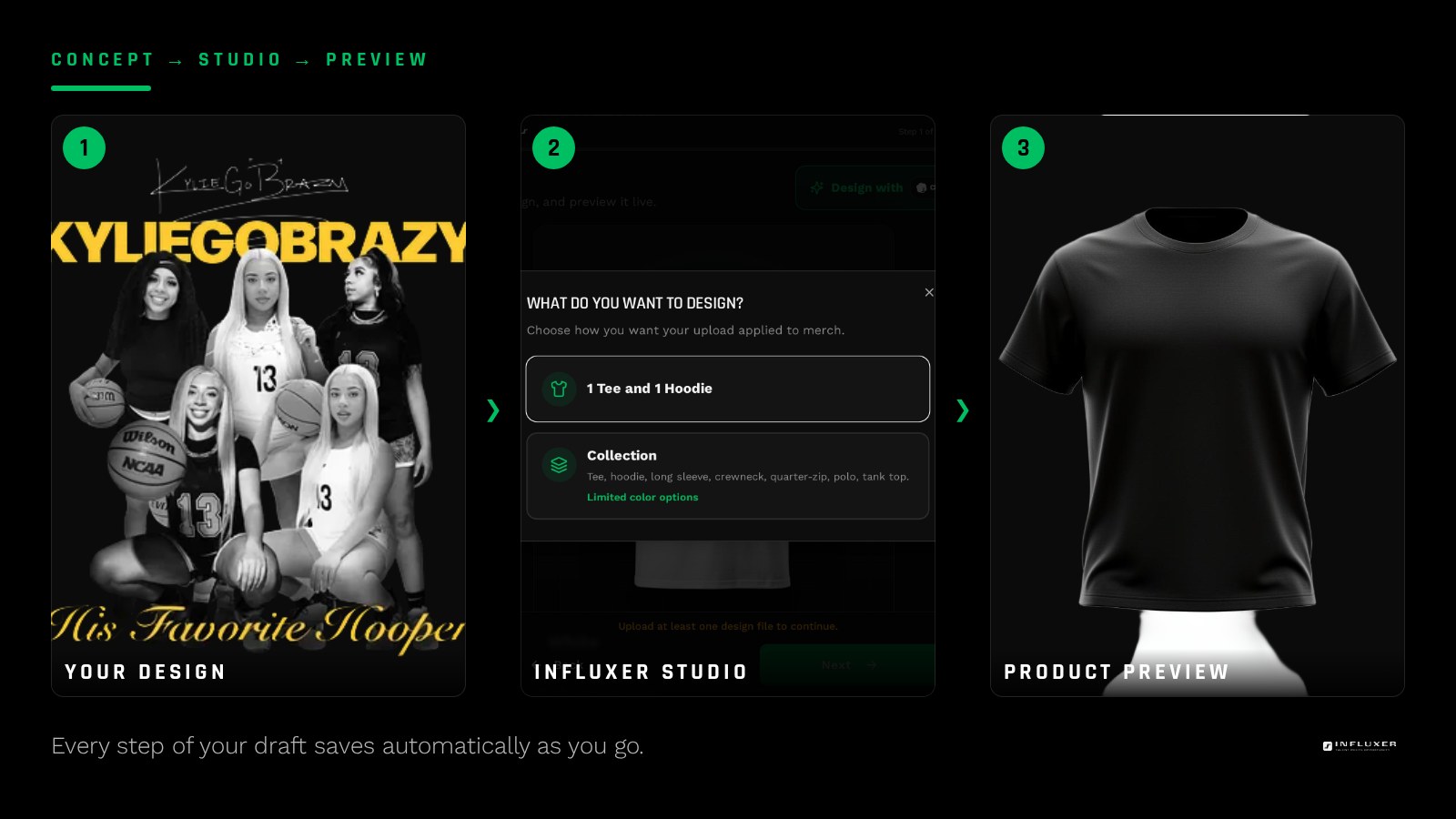
When you leave a draft partway through, you get a resume link that takes you straight back into the same order where you left off. This is what makes stepping away practical instead of risky.
Keep this link somewhere you will actually find it again, like a note or a message to yourself, especially if you are working across devices, say starting on your phone and planning to finish on a laptop later.
- Save your resume link immediately after starting a draft.
- Use the same link on a different device to keep working.
- Do not assume a bookmark of the homepage will get you back to a specific draft.
What resuming looks like in practice
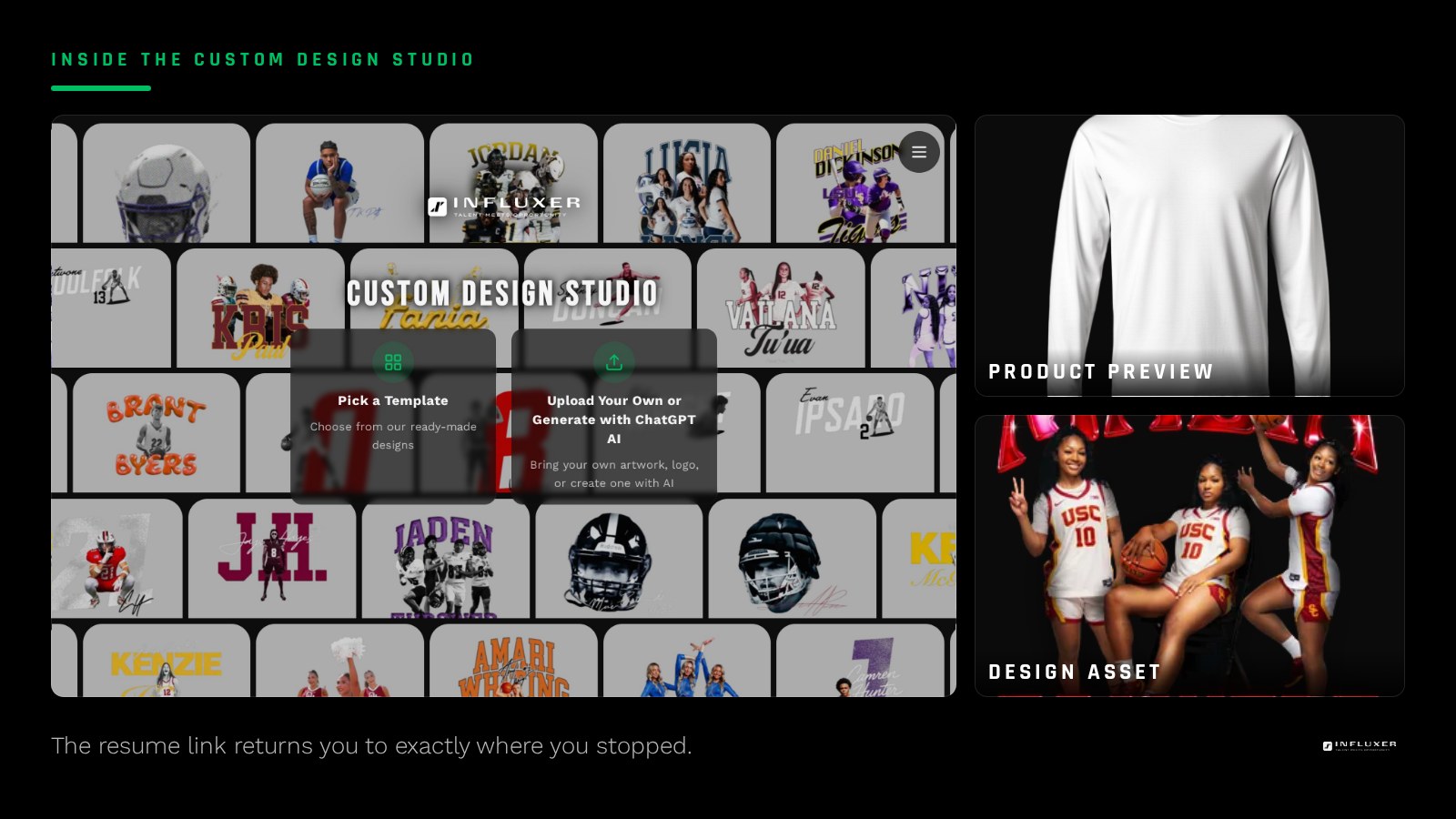
Opening a resume link puts you back on the step you last left, with your design, photo, and any details already in place. You are not starting the five-step flow over; you are continuing it.
This matters most for the Design step, where placement, scale, and garment color choices take real time to get right. Auto-save means that work is not lost just because you needed to step away and think about it.
It also means you can treat a first sitting as exploratory. Try a layout, leave it, and come back later with fresh eyes to decide if it still looks right, rather than feeling pressure to finalize placement the same minute you started.
Why this matters for the Info step specifically
If you get to Info and realize you are unsure about a detail, like the exact spelling of your school name or which contact info to use, you do not need to guess just to keep moving. Resume later once you have the answer, and your design and photo will still be exactly as you left them.
This also gives you room to correct a mistake. If you typed something wrong at Info and already moved on, you can resume the draft and fix that field before you ever reach the collaborator agreement at Review.
Drafts and the submission limit
Athletes can submit up to three actual submissions per email address, and drafts that are never submitted do not count against that limit. That means you can start, abandon, and restart a design as many times as it takes to get it right without worrying about using up your submissions.
This is useful if you want to test two different design directions before deciding which one to actually submit for review.
What resuming does not change
Resuming a draft does not alter anything about your design or details; it simply reopens the exact state you left. It also does not skip the Review step. Once you resume and finish, you still go through the same order summary and collaborator agreement confirmation as any other submission.
Working across a team or a household
If a parent started a draft but the athlete wants to finish choosing the design, or a teammate wants to weigh in on a color before it is submitted, the resume link is the easiest way to hand off a draft. Send the link to whoever needs to look at it next, and they will see exactly what is in progress rather than starting from scratch on their own.
This is also useful if you want a second opinion before submitting. Send the resume link, ask the person to look at the current Review screen, and make any changes based on their feedback before finishing the order yourself.
Before you step away mid-order
- Confirm your resume link is saved somewhere you can find it.
- Note which step you left off on, even though the link handles this.
- Remember unfinished drafts do not count toward your submission limit.
- Use the same resume link if you switch from phone to laptop.
- Double-check any Info fields you were unsure about before resuming to Review.
- Do not create a second draft if you already have a resume link for one.
Frequently asked questions
Do I need an account for auto-save and resume to work?
No. Auto-save and the resume link work whether or not you have an account, since a draft is tied to the order itself, not to a login.
How long does a saved draft stay available?
Your draft persists so you can resume it later using your link. If you plan to leave it for a long stretch, keep the link somewhere reliable rather than relying on memory.
Does starting a new draft affect an existing one?
No, each draft is its own order. If you meant to continue an old one, use its resume link instead of starting fresh to avoid ending up with duplicate drafts.
Do abandoned drafts count against my submission limit?
No. The limit of three submissions per email applies to actual submitted orders, not to drafts you never finished.
Start your merch — Answer a few questions and get pointed to the right path for your merch.
Upload your own design — Bring a finished logo or graphic and place it yourself.